roadbook setup
How to Use a DMD2 Controller with the TRBP Roadbook App
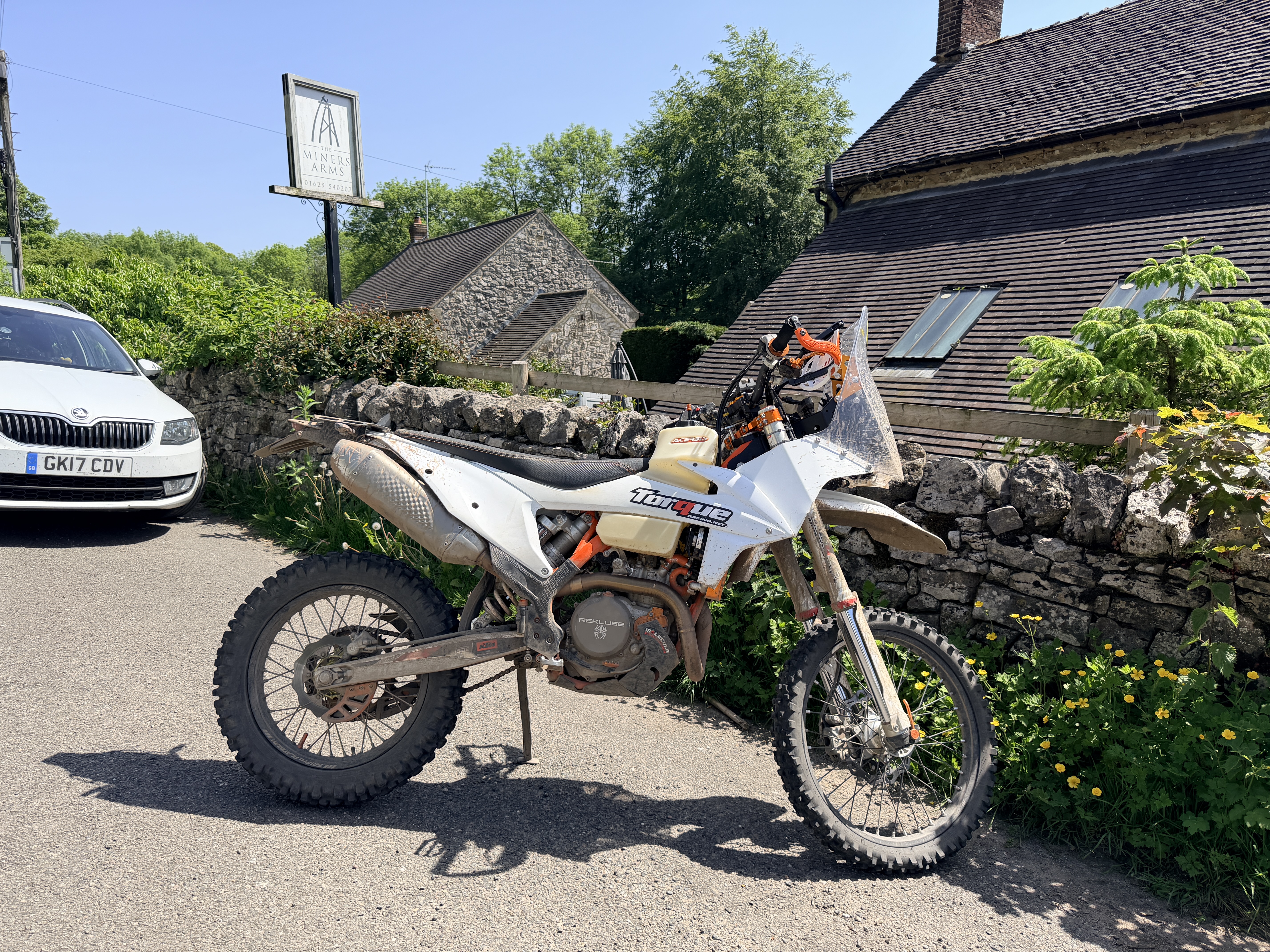
A DMD2-compatible controller makes digital roadbook navigation feel much closer to a proper rally setup. Instead of reaching for the screen while riding, you can scroll the roadbook and adjust trip distance from the handlebars.
This guide explains how to connect your controller, prepare the TRBP Roadbook app, and check everything before you start riding.
What you need
Before you start, make sure you have:
- A compatible DMD device running the TRBP app
- The TRBP app installed
- A DMD2-compatible controller
- A downloaded TRBP roadbook
- Location permission enabled for the TRBP app
Set everything up before you leave home or the paddock, especially if you may lose mobile signal during the ride.
Step 1: Connect your controller
DMD controllers are usually already wired into the bike or connected through the device/controller setup you use for DMD2. Before opening TRBP, make sure the controller is powered and connected to your DMD device.
Some DMD controller setups can also use Bluetooth, but in most cases that pairing will already have been completed as part of the DMD setup. If Bluetooth has not been set up yet, follow your controller manufacturer's instructions first.
Step 2: Open TRBP
After the controller is powered and connected, open the TRBP app on your DMD device.
Choose the roadbook you plan to ride and check that the correct route is loaded before you start navigating.
Step 3: Download the roadbook
Download the roadbook before riding so the route is available on your DMD device.
This is important if you are heading somewhere with limited mobile signal. A downloaded roadbook keeps the tulips, distances, route notes, and navigation information available when you need them.
It is best to download the roadbook while you still have a reliable Wi-Fi or mobile data connection.
Step 4: Test the buttons before you ride
Before setting off, test the controller with the roadbook open in TRBP.
Check that the controller can scroll the roadbook up and down. You should also test trip distance adjustment so you know the controller is responding correctly.
Do this before you start riding. It is much easier to fix a connection or button issue before you are on the trail.
Step 5: Start navigating
Once the controller is connected, the roadbook is downloaded, and the buttons have been tested, you are ready to ride.
Use the controller from the handlebars while following the tulips, distances, and route notes on screen. This lets you keep your hands on the bars and focus on the navigation rather than the device.
Troubleshooting
If the controller is not behaving as expected, start with the basics.
Controller not connected
Check that the controller has power and that any hardwired connection is secure. If your setup uses a controller hub or adapter, make sure each connector is seated properly and that the device is receiving input.
If your DMD setup uses Bluetooth, open the Bluetooth settings on the DMD device and confirm that the controller is still connected. If it is not connected, reconnect it using the controller manufacturer's instructions.
Buttons not responding
Make sure the controller is powered and connected, then return to the TRBP app and test the buttons again with the roadbook open.
If the TRBP app was already open before the controller connected, close and reopen the app, then test again.
Roadbook not scrolling
Confirm that a roadbook is open in the TRBP app and that the controller buttons are responding.
If the roadbook still does not scroll, check the controller connection and try again.
Trip distance not adjusting
Check that you are using the correct controller buttons for trip adjustment. If the buttons do not respond, restart or reconnect the controller and test the roadbook again before riding.
Final check before riding
Before you leave, confirm that:
- The controller is connected
- The roadbook is downloaded
- Location permission is enabled
- Roadbook scroll up and down works
- Trip distance adjustment works
A quick check before the ride can save a lot of frustration once you are out on the route.